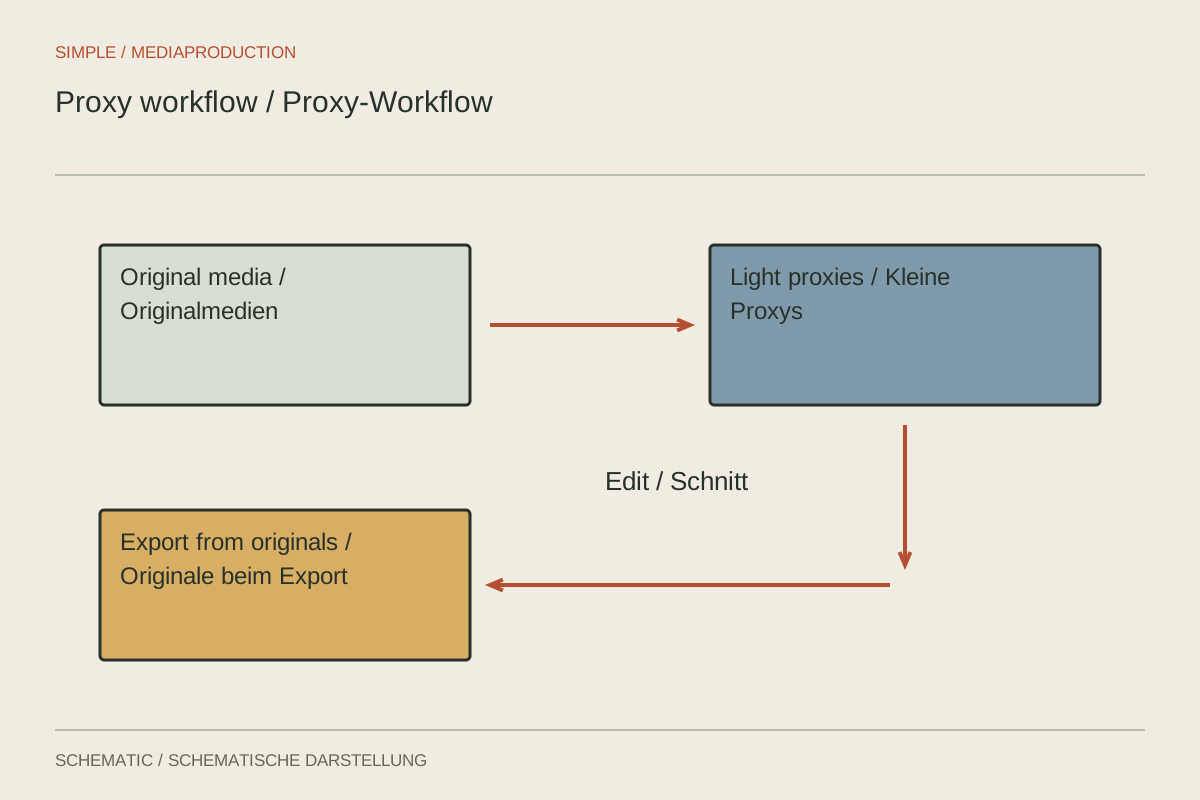
A high-resolution clip may stutter despite a fast SSD because its compression demands substantial processing. A proxy is a derived working copy designed for easier playback. It may use lower resolution or an editing-friendly codec. Editing decisions should remain traceable to the original. Proxies are therefore an organised workflow, not simply any small video export.
Identify the actual bottleneck first
Play one clip without effects and temporarily reduce preview resolution. If only demanding noise reduction slows the timeline, a proxy may not solve the bottleneck. If the untouched file already stutters, media processing is a useful place to investigate. Also check that the drive is properly accessible and not occupied with other large tasks.
Create one proxy from a representative clip first. Use the editor's intended proxy feature. An arbitrary export may differ in frame rate, duration, audio channels or time information. These differences complicate attachment and may later produce incorrect framing or missing audio.
Preserve identity and relevant properties
Original and proxy need an unambiguous relationship. Keep source files unchanged and place working copies in a clearly named area. If different cameras share filenames, preserve those distinctions through the folder structure. Manually swapping files because they look roughly alike is too unreliable for larger projects.
After generation, inspect the beginning, middle and end. Toggle between original and proxy while watching framing, duration and synchronisation. Lower sharpness is expected; different content or shifted sound is not. With multichannel sound, confirm that the necessary channel arrangement is supported.
Use proxies for appropriate decisions
Lighter files are sufficient for selection, rhythm and many simple transitions. Return to originals for critical focus assessment, fine masks, strong colour correction or compression evaluation. Otherwise a soft proxy preview may prompt unnecessary sharpening that looks excessive on the original.
A visible proxy indicator can help identify the current state. It should affect only the working copy and must not accidentally enter final output. Check how the application handles proxies during export. Do not assume every program or preset automatically follows the same route.
Verify an export from originals
Before delivery, ensure original media are online and output uses them when that is the intended quality workflow. First export a short demanding passage containing text, motion and detail. Compare it with the original in the project and check resolution and framing.
If the original path is missing, repair the link deliberately. A proxy must not silently become the only available source. Keep originals and backups independent of the proxy folder. Proxies can often be recreated later; lost camera originals cannot.
For handoff to another computer, document application version, proxy format and storage locations. Test opening with the folder structure actually transferred. Smooth editing on the first machine is only half the task; the relationship must remain understandable after copying or archiving.
Recognise an incorrect proxy
A typical fault becomes visible only when toggling: the original shows the beginning of an answer, while its supposed proxy already shows the second sentence. Identical filenames can conceal an incorrect attachment. Compare duration, camera identifier and the first recognisable image. Detach the wrong link and reconnect the working copy through the intended dialog. Do not merely rename files until an error message disappears.
Also check whether the proxy was generated from an edited sequence rather than the complete source clip. It then has a different time relationship. One clean single-clip trial reveals these mistakes early and prevents hundreds of working copies being created with the same incorrect preset.