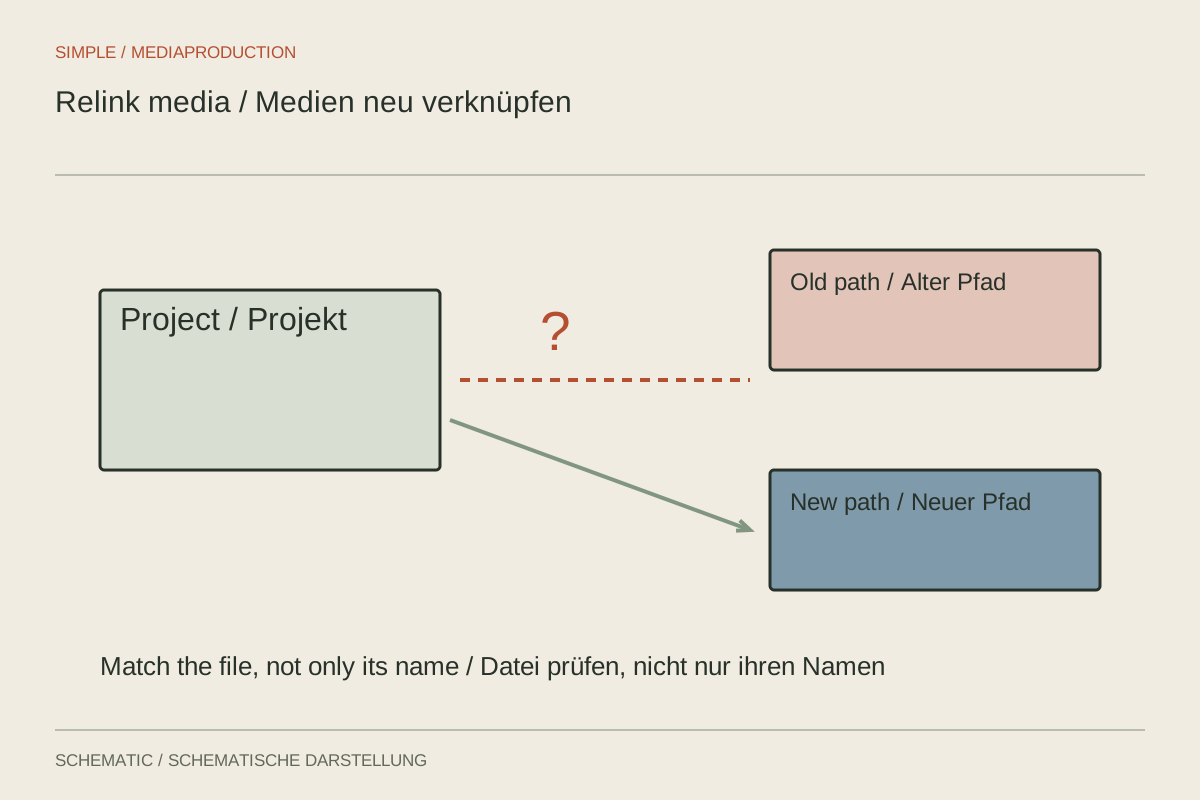
“Media offline” initially means that the project cannot find an expected file at its saved location. It does not automatically mean the recording was deleted or damaged. After changing drives, renaming folders or opening on another computer, a changed path may be the only problem.
Preserve the pre-repair state
Save a project copy under a new name. This lets you reverse incorrect links without losing the previous state. Note which media are missing and inspect their last known paths. A shared missing parent folder suggests a relocated collection rather than numerous independent file failures.
Check that the relevant drive is connected and accessible. Network locations and cloud storage can involve availability or local-download issues. A visible placeholder is not always a complete local media file. Allow controlled retrieval where necessary instead of immediately assigning substitutes.
Identify the correct original
Search using the original folder and filename first. Then compare additional properties such as duration, recording time, resolution and timecode where available. Cameras may reuse names across cards. “C0001.mp4” alone is therefore not a reliable identity.
For example, two shoot days each contain “C0001.mp4.” Both files have the same resolution but show different interviews. Automatic name-only matching can make the project display the wrong face without an error. The original card folder and visible contents help confirm the association.
Where uncertain, open candidate files in a suitable player or source monitor. Compare their beginnings, endings and a distinctive moment. If the timeline uses only a middle section, inspect that section too. A similar opening image is insufficient when several takes of the same subject exist.
Reconnect manageable groups
Relink one clearly identified file first. Some editors then locate neighbouring media automatically. Check those results before approving a broad automatic search. Appropriate strict criteria can prevent mistaken matches; loose criteria do not make a quickly completed search dependable.
Treat original media and proxies as different roles. A small proxy may produce a picture without being the appropriate replacement for the full-resolution source. Use the application's intended proxy or original-media reconnection mechanism. Document when only a substitute is available and original quality could not be restored.
A transcoded or trimmed file may have different timing despite a similar name. Ordinary relinking may then be unsuitable. Determine whether deliberate replacement and renewed edit checking are necessary. Do not describe the original as restored when new substitute material was actually used.
Inspect picture, sound and edit points
Play affected sequences and check cut boundaries. Do the beginning, ending and selected passage match? Listen to sound and inspect synchronisation. Different channel structure can create unexpected results even when the image appears correct. Watch warnings and changed media properties.
Compare critical moments with an earlier reference export where available. This can reveal subtle mismatches. A project reopening without an offline warning has passed a linking check; the editorial correctness of the selected media still needs separate verification.
Record the repaired state
Save the confirmed version and note the new locations. For subsequent handover or archiving, collect the project into a comprehensible structure and test that collection again. Avoid further casual renaming while other projects may reference the same media.
Keep the original project copy until verification is complete. If an incorrect clip is discovered later, it helps establish which association changed. A careful repair ends with the correct picture and sound, not merely the disappearance of an offline warning.